In this guide
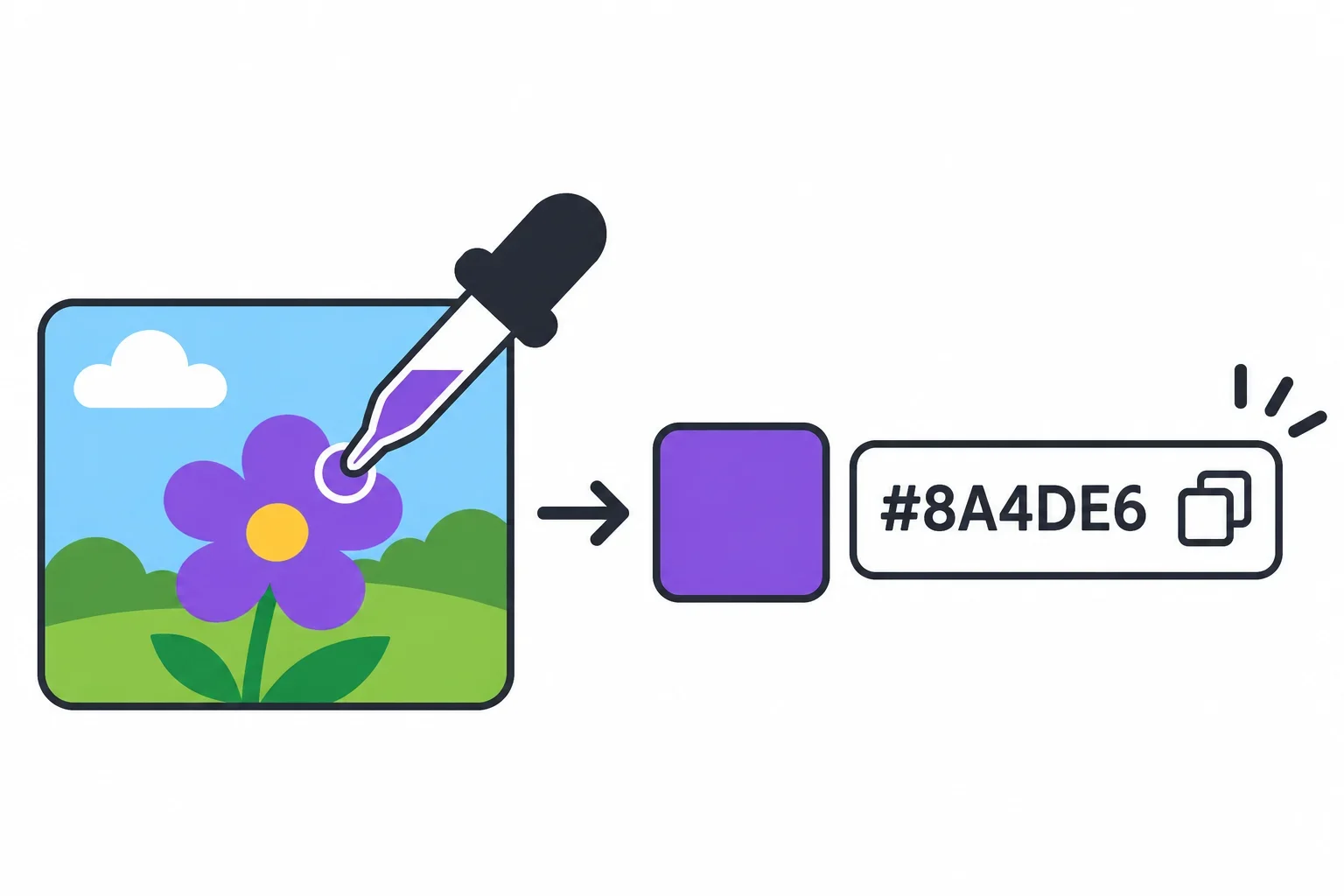
To sample a color from a webpage in Chrome, open DevTools, select an element with a color declaration, and open the declaration’s color preview. Activate the eyedropper, click the color you want on the page, then copy the value shown in the picker.
The most useful first step is deciding exactly what you want to match. A pixel you see on screen can reflect several visual layers, so its sampled value may differ from the color written in the page’s underlying style. The steps below help you choose a point to sample, find the picker, and check that the copied value works for your purpose.
Choose the color to sample
Start by looking at the page as a whole and deciding which visible color you want to reuse. It might be the interior of a button, a patch of background, a detail in an image, or a color shown in a video. Identify a specific spot before opening the picker; that makes it easier to return to the same point if you need another sample.
If the area looks uniform, aim for the middle of a large flat patch. Avoid clicking right on an edge when the interior is what you want to match. If repeated samples produce different values, move farther inward and try again.
What if the color changes across the area?
A gradient or uneven image can offer several reasonable answers. Choose the part that matters for your intended use. For example, if you are matching the darker end of a gradient, sample that end; if you want a middle tone, click where that tone appears. Save more than one value if you need to compare the choices later, and note where each came from.
For a video, pause on the frame you want before sampling. The sampled pixel reflects the frame visible when you click, so a different frame may give you a different result. Once paused, choose the precise area you want to match.
A visible pixel or a style value?
These answer different questions. Sampling a pixel captures the composited color at the point you click, including the effects of layers above it. A color declaration describes a value in the page’s styles. If your goal is to reproduce what you can see, sample the visible spot. If you need the underlying style value, inspect the relevant declaration instead. Keep that distinction in mind when the two values do not match.
Open Chrome’s color picker
Open the webpage in Chrome and bring up DevTools. Select an element on the page, then look in the styles shown for that element for a color declaration with a color preview. Click the preview to open Chrome’s color picker.
The element you select is a starting point for opening the picker. Before clicking through, make sure you can still see the part of the page you intend to sample. If the DevTools panel covers it, adjust your view so the target is visible.
Find a color preview
Look through the selected element’s displayed styles for a color declaration. A visible preview beside a color value gives you a control to open the picker. Click that preview, then look for the eyedropper in the picker.
If the selected element does not give you a useful color preview, choose another page element and check its styles. You are looking for a way into the picker; take a moment to distinguish the element you selected in DevTools from the final spot you intend to sample on the page.
For example, suppose you want to match a small patch in an image. First open the picker from an available color preview in the styles. Then, when the eyedropper is active, choose the patch itself as your sampling point. Check the result before using it elsewhere.
If the page shifts or the target becomes hard to see while you arrange the view, stop and identify the desired spot again. This is especially useful when several nearby areas have similar colors: the picker can only report the point you actually select.
Sample and copy the value
With Chrome’s color picker open, activate its eyedropper. Move to the visible page area you chose and click the point you want to sample. Look at the value displayed in the picker, choose an available format that suits your destination, and copy the displayed value.
A simple sequence keeps the task manageable:
- Open a color preview in DevTools and activate the eyedropper.
- Click the intended spot on the webpage, preferably well inside a flat area when matching a uniform color.
- Review the resulting color and select an available display format.
- Select and copy the displayed value, then paste it into the place where you need it.
- Compare the result with your intended sample and repeat if necessary.
Keep the target visible while you make the selection. If you are working with a gradient, be deliberate about which part you click; a sample from one end serves a different purpose from a sample near the middle. For a paused video, confirm that the desired frame is still visible before clicking.
Which format should you choose?
Choose a format accepted by the place where you plan to paste the value. For example, if a field asks for a hex value, select hex if it is available in the picker. If the destination asks for RGB, select an available RGB display instead. Check the destination’s instructions when you are unsure, and copy the complete value in the form it requests.
If you are collecting colors for later, record each value alongside a short description such as “button interior” or “background near the top.” That gives you a way to distinguish samples without relying on memory. When comparing two possible matches, keep both values until you can test them in the intended setting.
Check the result and troubleshoot
After pasting the value, compare it with the spot you meant to capture. Ask whether you sampled the right area and whether the destination accepted the format. A useful check is to repeat the sample from the same flat area and compare the displayed values before deciding which one to keep.
If repeated samples differ, move toward the middle of a larger flat patch and try again. For an uneven image or gradient, different points may be useful for different purposes; choose the one that best matches your goal and record its location. If the target is in a video, pause the desired frame and sample again.
Why does the result differ from the page’s style?
The point you clicked may show the combined effect of layers above it. A sampled pixel can therefore differ from an underlying color declaration even when both refer to the same general area. Decide whether you need the visible result or the value in the styles, then use the corresponding value for your task.
If you expected a particular visible color but got another, return to the page and check the exact point you clicked. An edge, a nearby detail, or a different part of a gradient may be a less useful match than the area you intended. Resample from a clearly chosen point and compare the new value with the first.
What if the eyedropper is unavailable?
First check that you opened the color preview in DevTools and are looking at the color picker. If you cannot find or activate the eyedropper, check the support and instructions for your browser or the picker you are using. Controls and limitations can differ between products, so follow the guidance for the specific tool available to you.
If a destination rejects the copied value, check which format it accepts, return to the picker, and select a suitable available format before copying again. If the value is accepted but the result is not what you wanted, revisit the sampling point and the distinction between a visible pixel and an underlying style. Keep the sample that answers your original question, along with a note of where you took it.